
Configuring and Building a New Model#
You have created a project and added simulation data in the Ansys SimAI Pro application as described in Creating a Project and Adding Data. A minimum of four data sets is recommended.
Tip
Model configuration is auto-saved in your application. Any edit alters the definition of your upcoming build request.
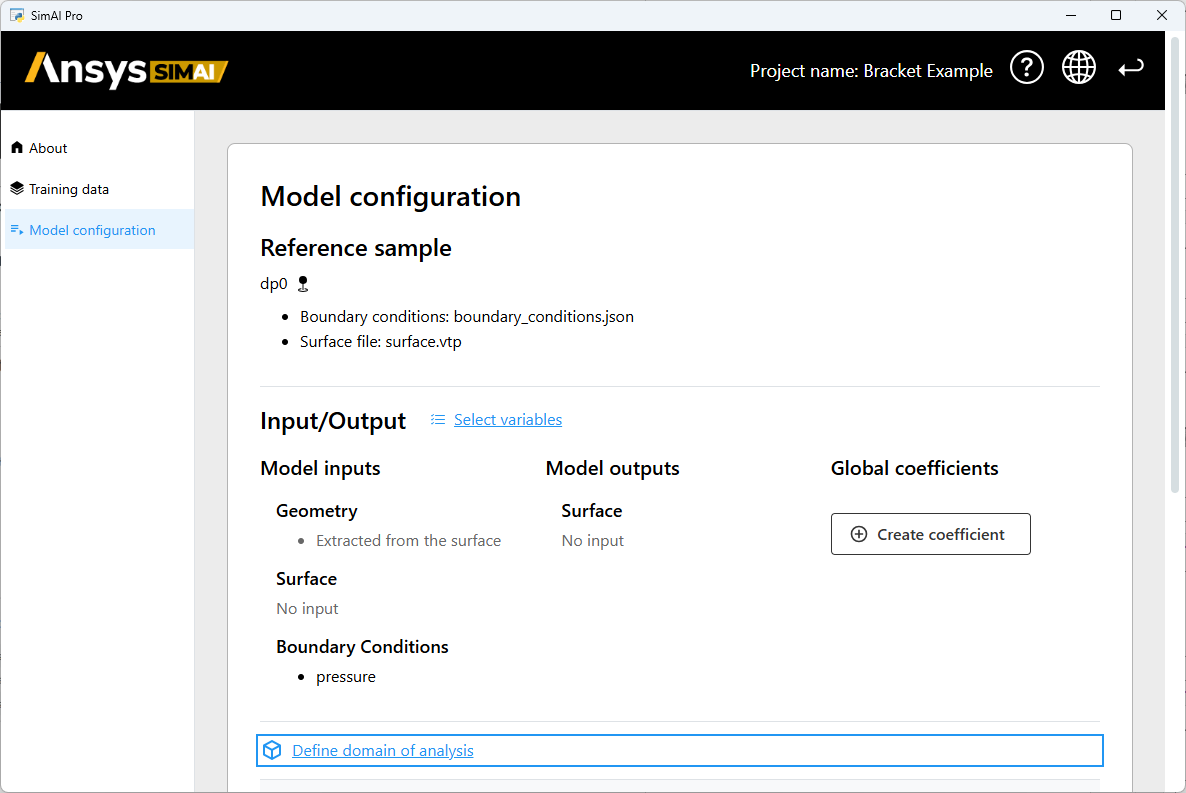
From your main view, select the tab Model Configuration in the left navigation panel.
In the Reference sample section, verify that the dataset selected (to extract your variables) is valid.
In the Input/Output Section of the main view:
Click Select variables (see Variables Selection) to select the variables relevant for your study.
Click Create coefficient to create a scalar value (for example: Drag, Lift) that will be computed as a postprocessing after a prediction. For more information, see Global Coefficients Editor.
Name the Global coefficient in the Name field and click Create Coefficient.
Click Define domain of analysis to check the size and position of the domain (bounding box) used for AI learning and model predictions:
Use the Auto setup to automatically get the domain extends based on all the geometries in the project dataset by clicking Apply auto setup and validate.
Tip
The relative positions (either to the design edge or the design center) allow the Ansys SimAI application to adapt the training and prediction bounding box to the geometries’ position variation (for translation). Make sure the relative settings generate a Domain of Analysis (DoA) that is consistently positioned for all geometrical variations of the designs.
In the Build Duration, choose the right accuracy for your analysis:
Select Less Precise if you are working on validating that your AI model is functional.
Select Precise to build an accurate AI model for prediction and set your build duration ranging less than 48 hours.
Select More Precise if the training time has been used up for the full 48 hours.
Note
For most cases, maximum precision should be reached with a build duration of less than 2 days. When the training time is approaching its limit, choose the higher option.
Enter Model name.
Click Build Model.
The AI training is started.
Once your AI model built in production, a new panel item appears in the navigation panel under Model configuration.
Related concepts#
Model Configuration Settings: Learn about the parameters to set when configuring your AI model.