

Model Configuration Settings#
Reference Sample#
The reference sample corresponds to one of the simulation data among those added to a project. The variables it contains are made available to configure your model. Each project needs one reference sample. By default, the first data added to a project is set as its reference sample.
This sample is used:
to extract variables,
to compute Global coefficients during model configuration.
The choice of the reference sample has no impact on the model’s performance. It behaves just like the other data during model training.
Variables#
Learn about the variables extracted from the reference sample and used to train the AI model and to compute Global coefficients.
Variables Selection#
The variables that you select are to be used to train the AI model on. Input and output variables will be used for training, while output variables will be predicted by the model.
Select among the variables extracted from the reference sample:
As Model input variables, the model will learn to predict outputs from. They must be present in all the data added to your project, and in every data file you want to run a prediction on.
As Model output variables, the model will learn to predict. They must be present in all the data added to your project. Once your model is built, it will be able to predict them.
Select variables that are relevant to your study and leave out variables that can be derived from others.
Selecting more than ten variables as model input may degrade your model’s performance.
Global Coefficients Editor#
A global coefficient is a scalar value calculated for an entire design after running a prediction. It characterizes the overall behavior of an entire system and helps to understand how the geometry behaves as a whole.
You can add as many global coefficients as you want to your model configuration, based on the fields and variables you selected.
Example of global coefficients: Drag, Lift.
The Ansys SimAI Pro application provides a specific editor helping you build the formula calculating the global coefficient values. For more information, see Syntax Help for Global Coefficient Formula
Once a global coefficient’s formula is defined, its validity is checked. Once validated, it is calculated against the reference sample of your project to allow quick verification.
Syntax Help for Global Coefficient Formula#
The syntax accepted by the formula calculator follows the rules below:
Fields identifiers can be variables names (ex:
pressure) or strings (ex:"pressure"). For example, bothintegral(pressure)andintegral("pressure")are valid formulas. If a field name contains special characters, it is handled by surrounding it with quotation marks (ex:"pressure[MPa]").Vector fields can be indexed either with
X,YandZor with0,1,2.Example:
integral(wall_shear_stress[X])
Currently supported mathematical functions are
integral(field)computes the surface integral of a field located at cells. It integrates the entire surface.max(field)computes the maximum value in a surface field.min(field)computes the minimum value in a surface field.mean(field)computes the mean value in a surface field.
Operators
Standard mathematical operators
+,-,*,/can be used inside functions.Example:
integral(wall_shear_stress[X])
Domain of analysis#
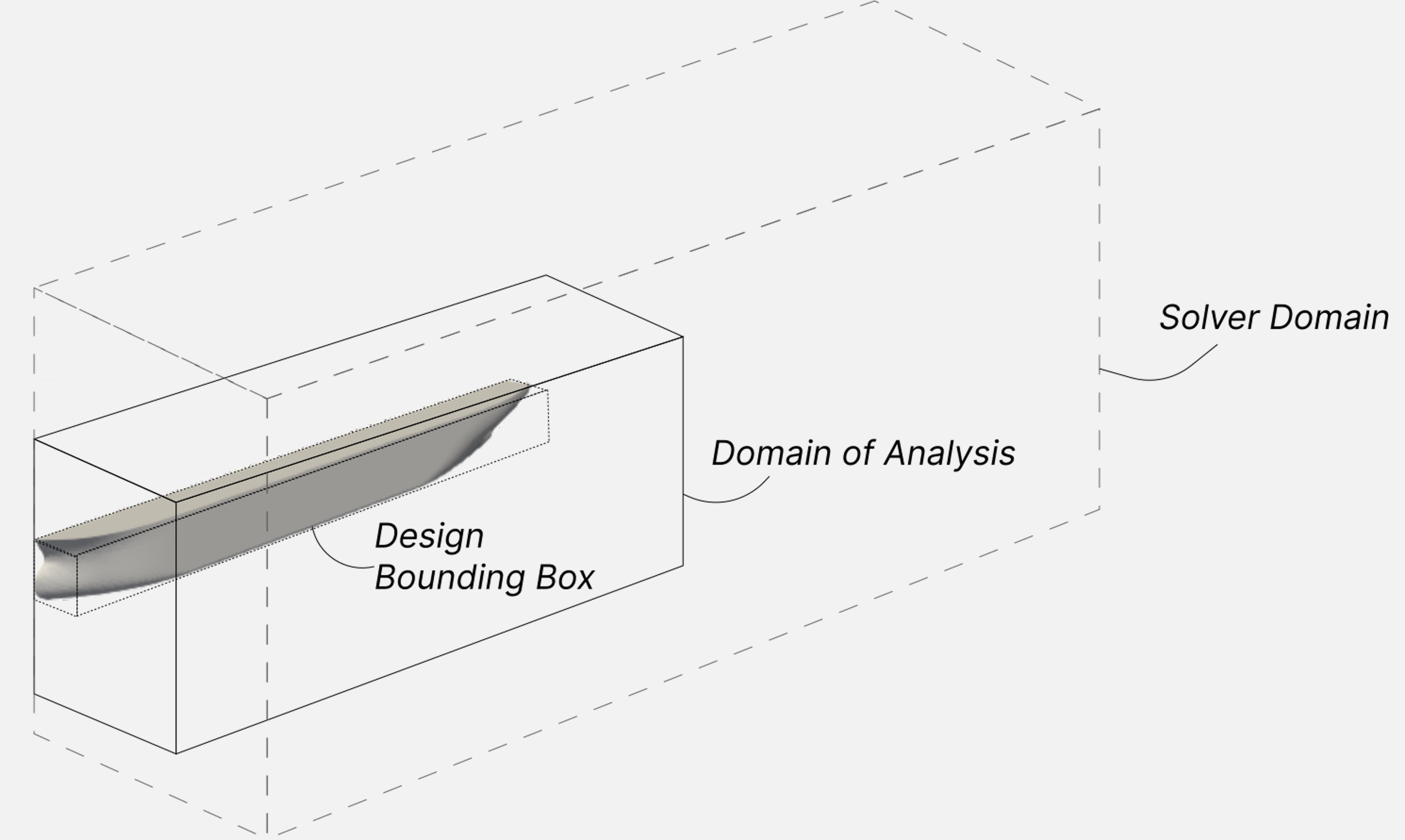
The Domain of Analysis (DoA) is a rectangular volume defined only once for a SimAI Pro model and that needs to encompass all your designs: simulation data used for training and new designs to predict on.
The domain of analysis is different from usual solver domains:
Guidelines#
A smaller domain of analysis leads to a better accuracy of your AI model.
The domain of analysis needs to reflect the study you want to perform.
For example, if the goal is to do an aerodynamic study and observe the drag of a car, the domain of analysis would need to cover the car and the volume of interest behind it.
Apply auto setup#
Relative to min/max edge: the starting point and size of the domain of analysis is relative to the minimum/maximum edge of your designs. A margin of 20% is added relative to design edge (min).
Build Duration#
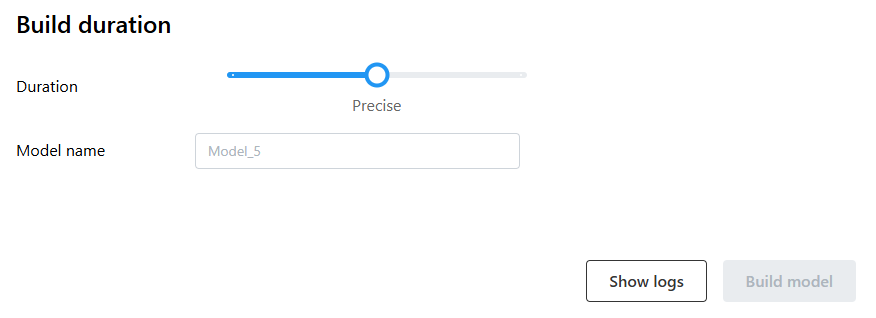
The build duration determines the training time of your AI model, and as a result, the accuracy of your analysis.
Three modes are available to build your AI model:
Less precise: The Less precise mode has a build duration of less than 24 hours. Use the Less precise mode to check if a model is working properly before running a longer production training.
Precise: The Precise mode ranges up to 2 days. The Precise build duration is set to “less than 2 days” as it should be sufficient to achieve maximum precision for most cases. It is good practice to increase progressively the build duration to build confidence in your model’s performance.
More precise: The More precise mode ranges up to 7 days. The More precise build duration can be used, if the needed precision could not be reached with the other modes.
Note
The training time depends on the size and number of simulation data. Training is terminated as soon as no further improvement can be achieved in the model, even if the maximum duration has not yet been reached.
Independent of the duration selection, the SimAI Pro application can downsample the model to achieve the best performance.
Downsampling (BETA feature)#
The downsampling option supports two scenarios.
The data points in the training data should be reduced:
so that the training of the same model is much faster for either a test run or a general reduced training time, or,
to avoid memory issues if the data does not fit the hardware.
Note
Before each training run, the application estimates whether the dataset can be loaded within the available GPU memory or system RAM.
No downsampling is performed by default. If the dataset fits the available hardware memory, the training proceeds normally.
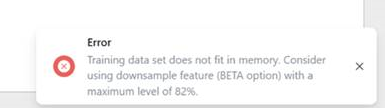
Error Handling: If the Dataset exceeds available memory resources, the training stops early (before the model build starts) and an error message is shown with a hint that downsampling may be required, and an estimated retainable ratio (%) indicating how much of the dataset can be kept to fit the machine.
Enabling Downsampling (BETA)#
To enable the BETA downsampling functionality, set the following variables in the installation folder:
~installation_path~\Install\ANSYS Inc\Ansys Solutions\Ansys SimAI Pro Solution\0.1.2\definitions\simai_pro\.env
SIMAI_ENABLE_DOWNSAMPLING=True (case-insensitive) or
SIMAI_ENABLE_DOWNSAMPLING=1
UI Changes#
When the BETA option is enabled, the standard UI for building models is extended.
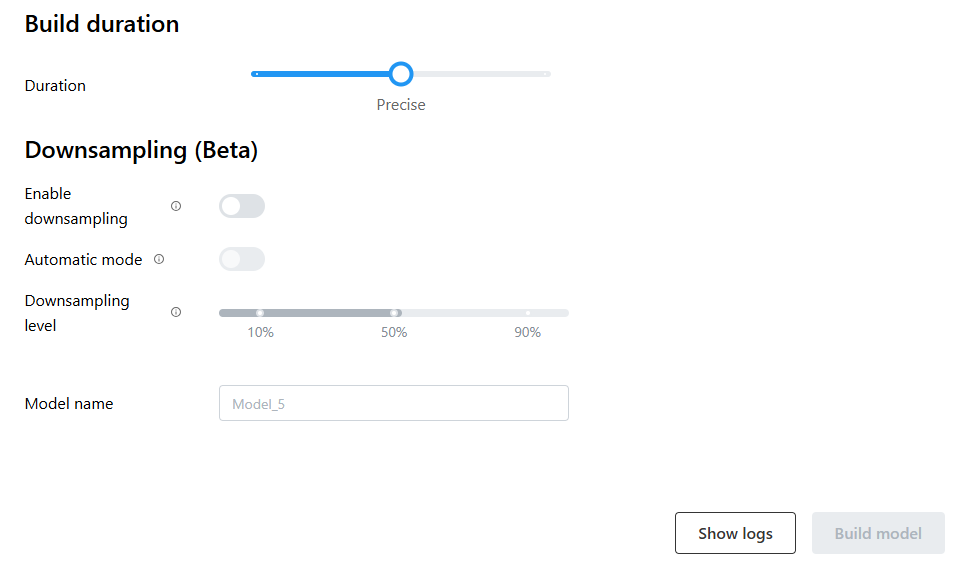
The enhanced UI supports three scenarios:
Downsampling disabled
Same behavior as without the BETA flag.
If the dataset does not fit memory, the same warning/error is raised and training stops early.
Downsampling enabled + Automatic mode enabled
The SimAI Pro application computes a downsampling factor to fit the dataset within 70% of available GPU memory or RAM.
The computed downsampling value can then be applied for training.
Downsampling enabled + Automatic mode disabled (Manual)
The downsampling level has to be defined manually (retention range between 10% and 90%).
The percentage represents the retained fraction of the largest sample/design point used for training:
10% means keeping ~1/10 of the original node count (strong downsampling).
80% means keeping 80% (that is, ~20% reduction in node/cell data).
A memory fit estimate is still performed; if the chosen retention is insufficient, an error is raised and the run stops early.
Reporting / Traceability#
For successful builds where the BETA downsampling option was used, the report includes downsampling information in the Input Data section.
Examples of reports:

